Samsung makes some of the best smartwatches around, but they tend to be big, bulky and aggressively styled. The Galaxy Watch Active is just as well equipped as other Samsung wearables but trades the rugged aesthetic for a more demure style. It also comes at a noticeably smaller price. The Galaxy Watch Active delivers almost everything you’d get in a bigger, more expensive watch at a price most of us can actually justify.
There are, however, a couple of things you need to know before you decide to buy one – like the fact its activity tracking is trash right now. Let’s dive right into our Samsung Galaxy Watch Active review.
About this Samsung Galaxy Watch Active review: I’ve been using the Galaxy Watch Active for two weeks. It’s running One UI version 1.0 on Tizen OS version 4.0.0.3 and software version R500XXU1BSB7, paired to a Pixel 3 over Bluetooth.
Show More
The big picture
The Galaxy Watch Active is not Samsung’s first foray into the fitness smartwatch category: the original Gear Sport arrived almost a year and a half ago. While the Galaxy Watch Active could easily be considered a Gear Sport 2, Samsung is instead positioning it as the sporty version of its recent Galaxy Watch range.
Given its $199 price point, the Galaxy Watch Active is positioned alongside a number of excellent fitness trackers. Samsung’s goal is clearly to snag part of that target market with a comparably-priced smartwatch that does a bit more than your average fitness tracker. It’s also a competitively priced option for regular smartwatch buyers that don’t like the usual bulky designs or that have slimmer wrists. Unfortunately for Samsung, while its watch might do more than your average fitness tracker, it certainly doesn’t track activity better.
Design and display

- 40mm watch case (one size only)
- 1.1-inch AMOLED display (360 x 360 pixels)
- 20mm silicone watch strap (two sizes included)
- Black, silver, rose gold, green
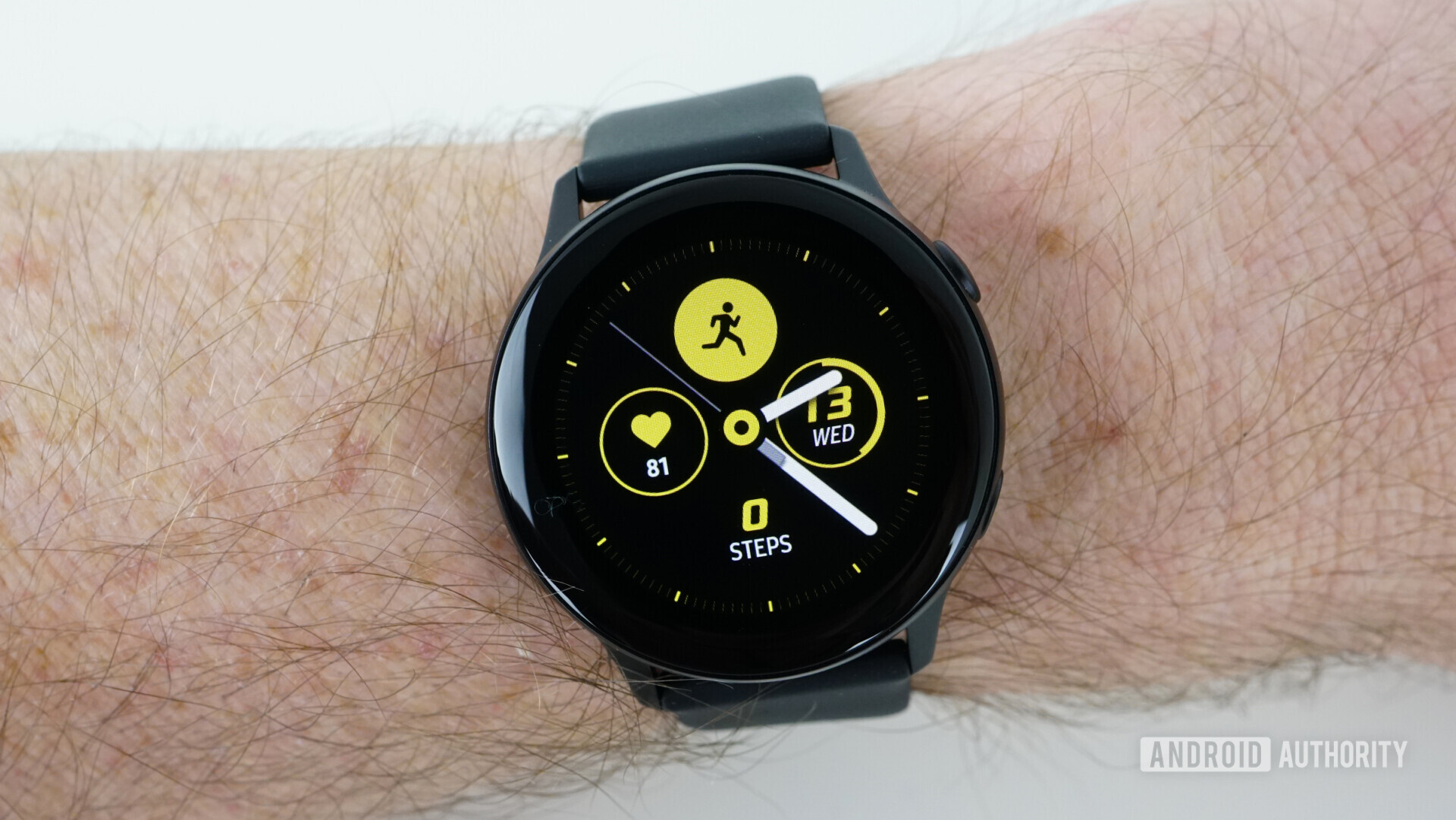
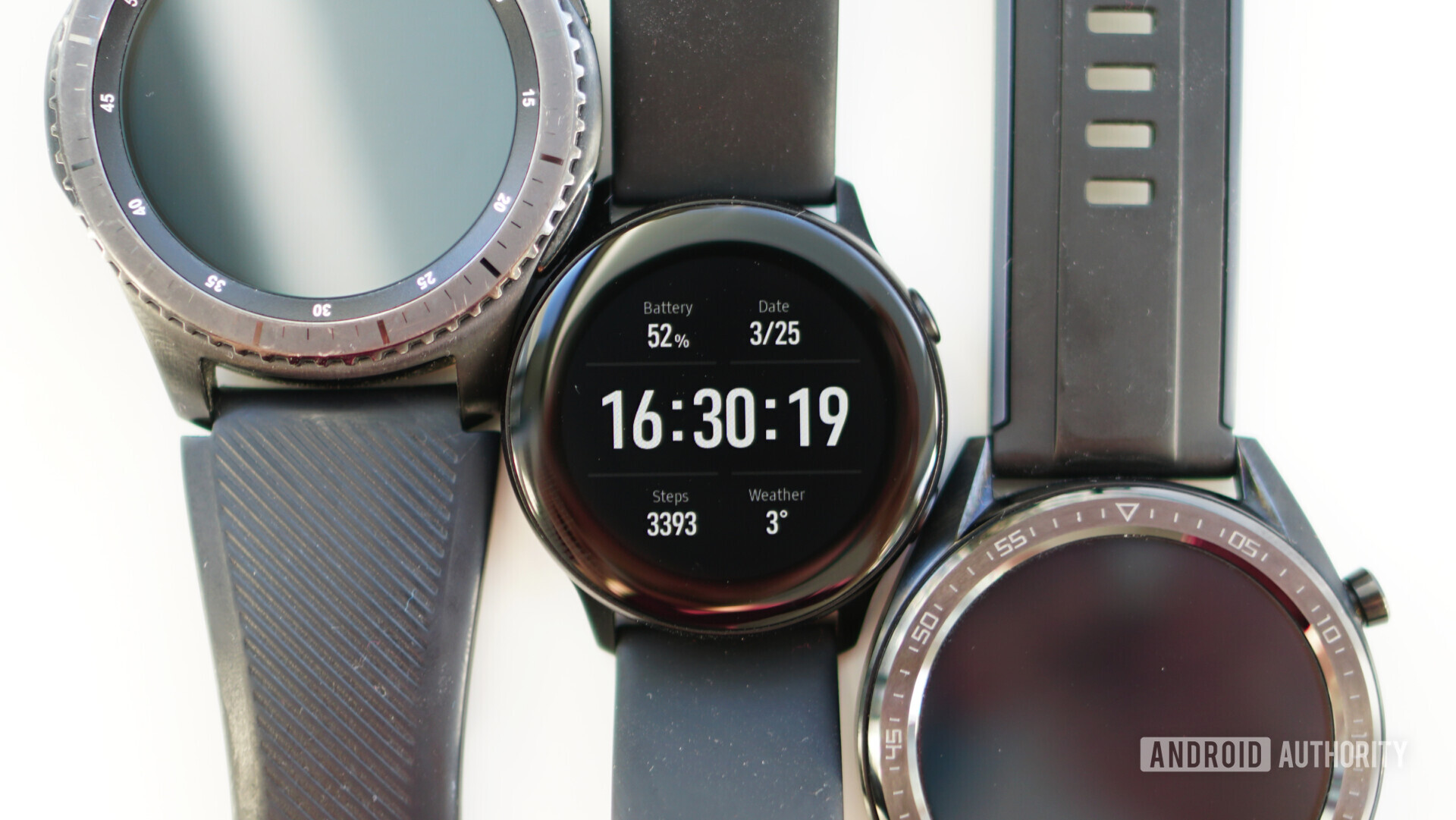
Even though the Galaxy Watch Active’s 40mm housing is only marginally smaller than the 42mm version of the Galaxy Watch, the difference in bulk is noticeable. Besides the difference in style, the Watch Active is also far lighter at just 25 grams compared to the smaller Galaxy Watch’s 49 grams. If you’ve ever tried exercising with a normal-sized smartwatch you’ll know this is a big plus.
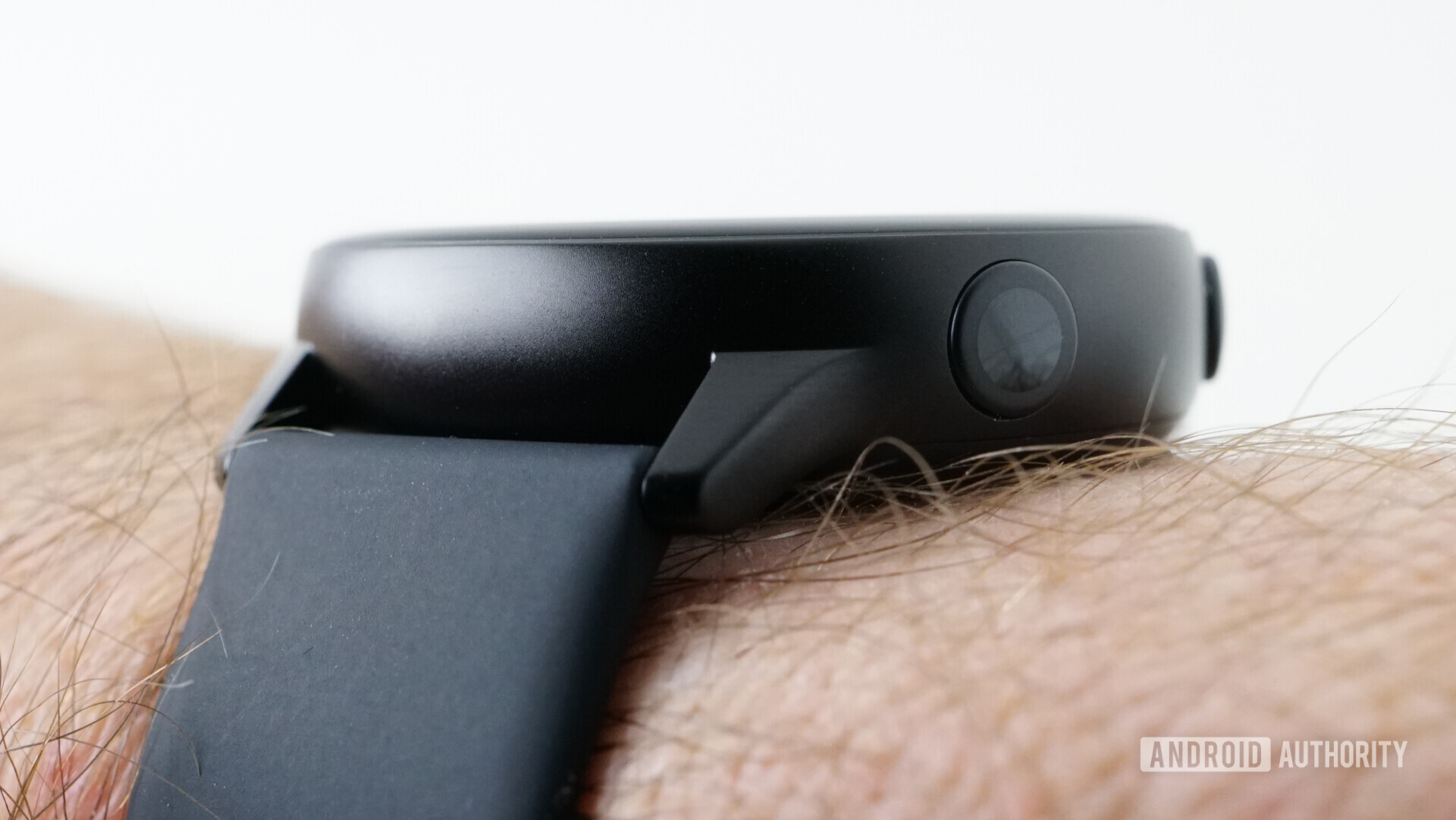
The lightness and smallness of the Galaxy Watch Active mean it’s far less likely to get in the way of your workout. Its near-flush buttons also mean they won’t get caught on things while you work out or dig into the back of your wrist when doing shoulder presses or loaded squats.

Despite its diminutive size, the Galaxy Watch Active is plenty rugged enough to survive an active lifestyle. The small circular display is coated with a layer of Gorilla Glass 3 (but no Corning DX+). It’s water-resistant up to 5ATM and certified MIL-STD-810G compliant. I dropped it on day one and couldn’t see where it hit the ground, nor did it pick up any scratches during a couple weeks of use. Activities during this time included swimming, cycling, running, gym workouts and yoga on top of daily wear and tear and several keyboard commando skirmishes.
The screen is great: vibrant and crisp, a necessity on a display this size. I found the auto-brightness to be quite responsive outdoors but unless you’re looking directly at the Watch Active, the glare tends to obfuscate the display. Keep this in mind if you tend to glance at notifications or activity tracking while cycling, for example. It’s fine for running, when you can lift your arm right up to your face, but this is not always possible during activities you may want to track.


If you’re coming from a larger-screened wearable, be aware that its 1.1-inch display might feel a little pokey. For reference, the Galaxy Watch Active’s 28mm screen is a half-centimeter smaller in diameter than the the larger Galaxy Watch and offers just 72 percent of the display area. The lack of a rotating bezel here is noticeable, because it means you’ll have to swipe and tap your way around the tiny UI elements.
There is a microphone on the Watch Active, but no speaker, so while you can answer or initiate calls with it, you’ll need a paired phone to actually hear your interlocutor. Likewise, you can initiate Bixby queries via the watch but only get text responses on it unless you have a pair of wireless headphones paired (I’d suggest maxing out the volume on the watch and just controlling it on your headphones). Bixby is perfectly fine for general voice searches like the weather but is only going to be really useful if you also have a Samsung Galaxy smartphone (as that’s where Bixby’s strengths lie).
The silicon watch strap the Galaxy Watch Active comes with is perfectly serviceable and closes with a traditional watch buckle. The excess strap tucks underneath the strap to keep it out of the way. I like this clasping mechanism and tidy approach to the leftover strap. There’s a whole host of optional bands you can swap out thanks to the standard 20mm strap sizing. There’s also a longer strap (the bit with the holes in it) in the box if you have larger wrists.
Smartwatch features

- Music playback
- Samsung Pay via NFC
- Smartphone notifications
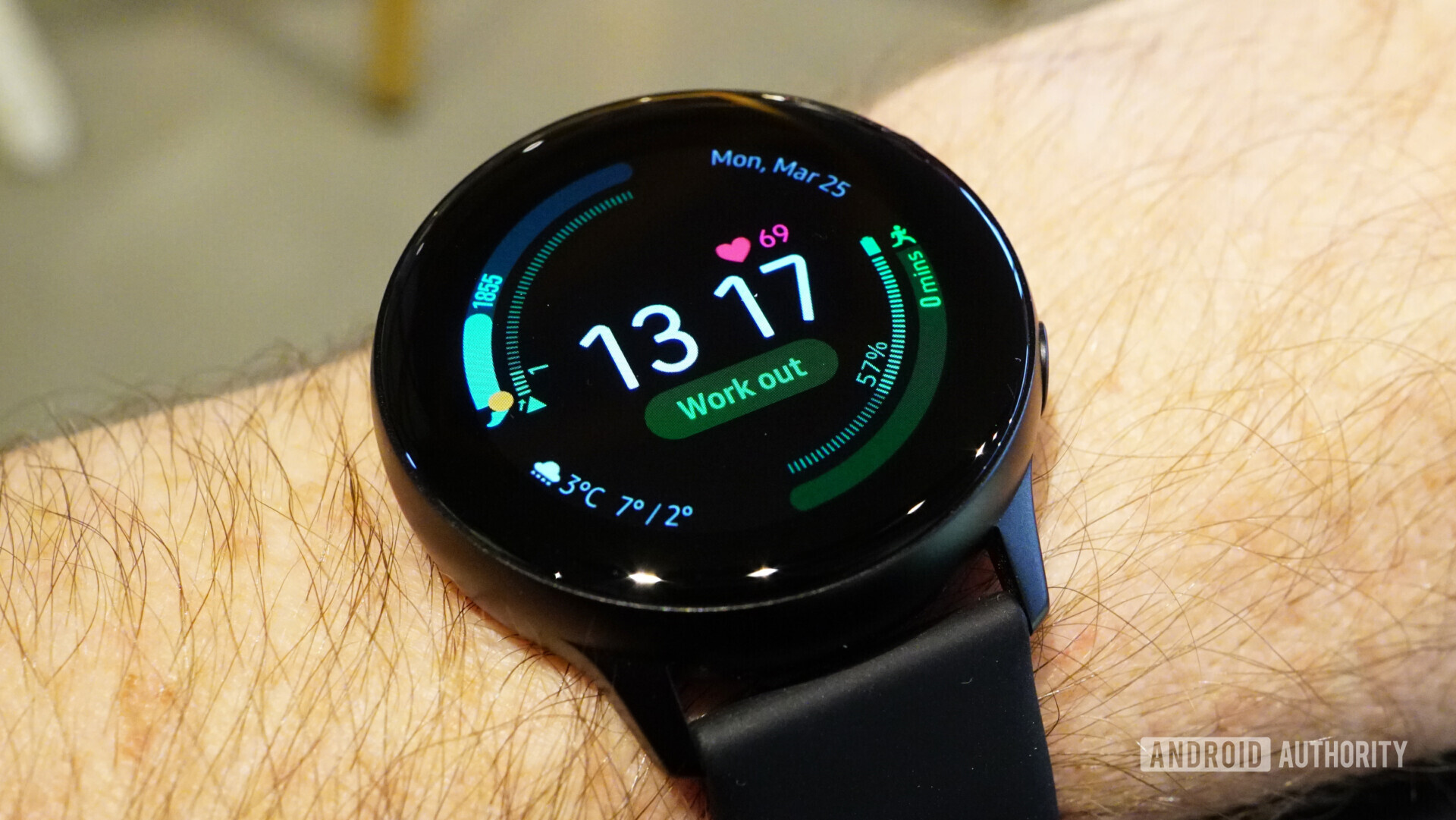
In typical Samsung fashion, the Watch Active has plenty to offer in terms of feature set and customization. It comes with a decent selection of watch faces to choose from, and more can be downloaded from the Galaxy Store (note: it runs Tizen 4.0, not Wear OS, which is just fine by me). All watch faces can be customized to your liking, so you can change colors, backgrounds and UI elements as you see fit.
The two buttons on the side of the Watch Active are straightforward: the top one takes you back a step and the bottom summons the app carousel. By default, a double press of the bottom button fires up Bixby, but as with most other things on this watch, it can be customized. I set it to display the world clock but you can change it to a shortcut for pretty much anything on the Galaxy Watch Active.

Swiping right on the UI accesses your notifications, which can be expanded beyond the summary view by tapping them. Doing so also allows you to respond, either using emoji, a tiny T-9 keyboard, voice dictation, or short canned answers like “on my way” and “talk to you later.” I found notifications on the Watch Active to be super reliable and prompt and responding to them even from such a small wearable was as good an experience as can be expected.
Swiping to the left cycles through fairly standard customizable screens including an activity dashboard, recent apps, heart rate monitor, calendar, contacts, weather, and music controls. There’s also a bunch of Samsung Health screens you can add here, including shortcuts to your favorite activity tracking, fitness challenges, leaderboards, sleep data, weight management, and monitoring of your caffeine and water intake.
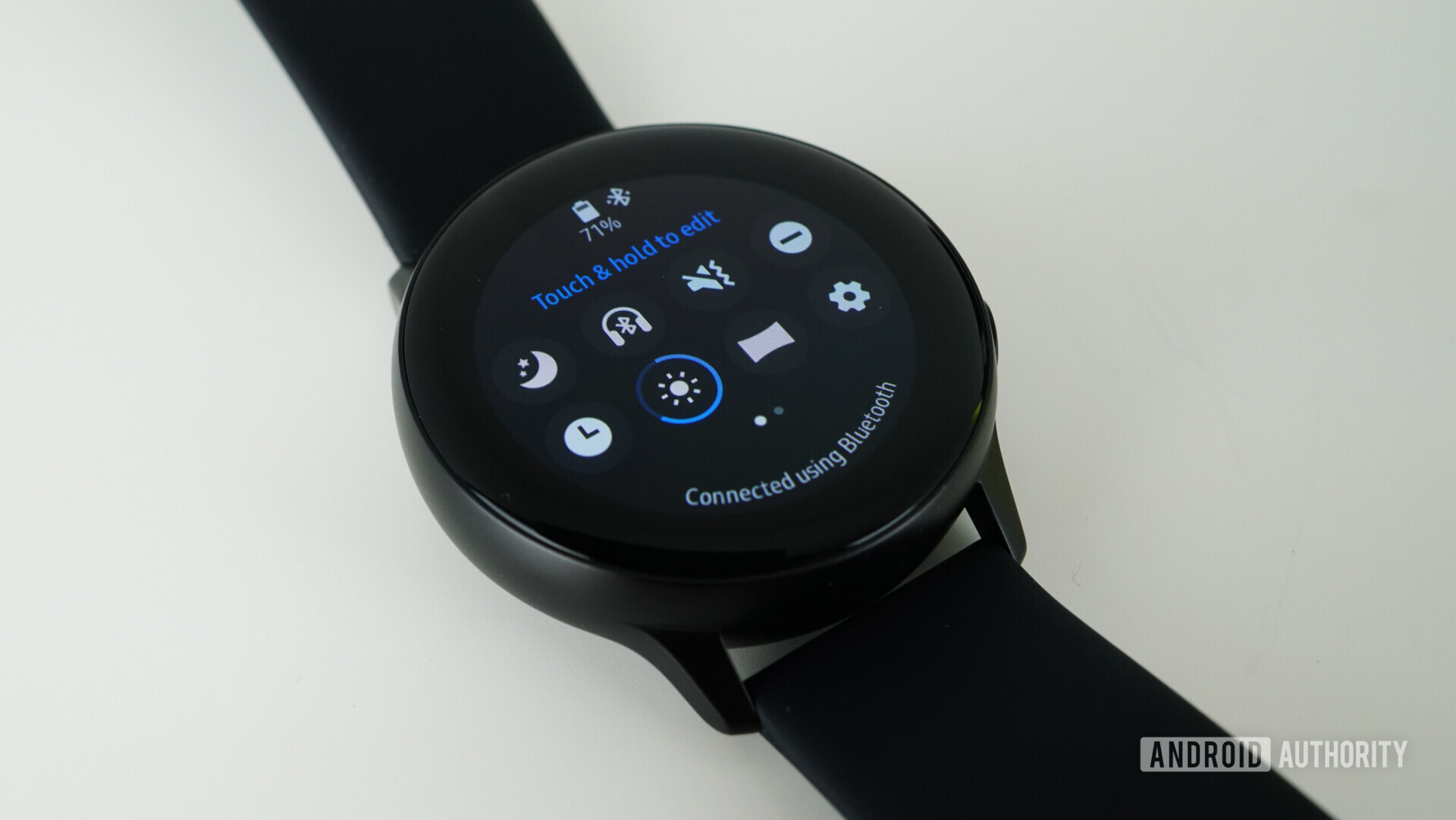
Swiping down from anywhere in the UI reveals the quick settings, which include:
- Goodnight mode
- Bluetooth shortcut
- Silent/vibrate toggle
- Do not disturb mode
- Always-on display
- Screen brightness
- Theater mode
- Settings
- Power saving mode
- Airplane mode
- Water lock mode
- Wi-Fi
- GPS
- Battery shortcut
- Find my phone
I won’t go into all these options as you can tell what they all do by their names. Suffice it to say the Galaxy Watch Active certainly doesn’t feel like it lacks in features, other than perhaps an LTE variant or a larger version. Everything on the watch feels fully baked too, with none of the glitchy or half-assed experiences you might be used to on Wear OS. Navigating long lists certainly isn’t as easy as it is with a rotating bezel, but the basic software and smartwatch features on the Watch Active are pretty solid.
The Watch Active has NFC so you can use Samsung Pay at newer contactless terminals, but Samsung removed the MST chip you’ll find in something bulkier like the Gear S3 Frontier, so you can’t use the Galaxy Watch Active at older magnetic stripe terminals. This may not matter too much depending on where you live, but be advised that Samsung Pay on the Watch Active doesn’t have the same widespread support as it does on your Samsung phone.
Fitness and health tracking

- Blood pressure monitoring
- Auto-detect fitness tracking (seven activities)
- User-initiated fitness tracking (39 activities)
- Sleep tracking
- Heart rate monitoring
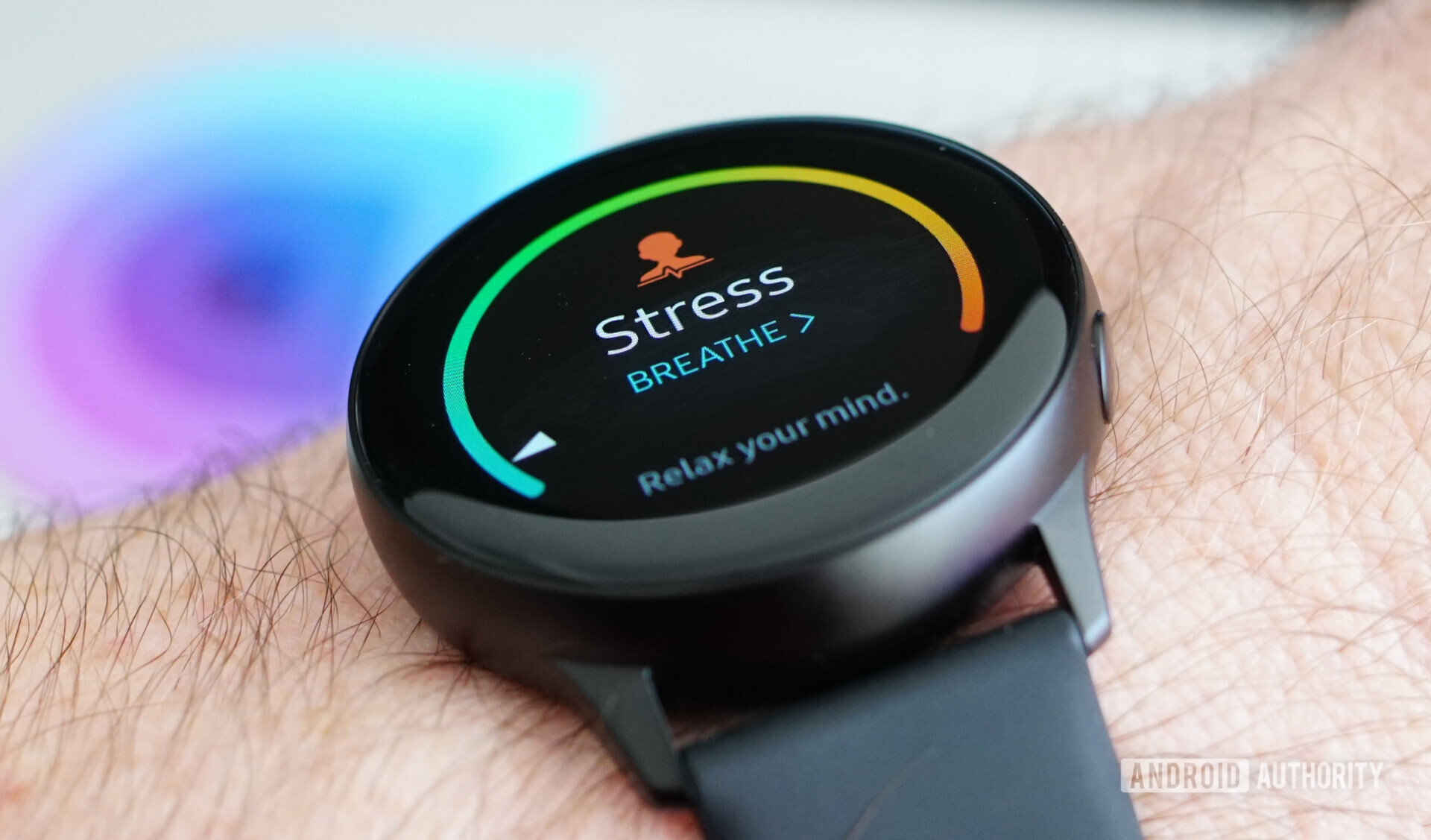
- Stress monitoring
- Built-in GPS
The one area in which the Galaxy Watch Active doesn’t score top marks is, ironically enough, health and fitness tracking. The arrival of blood pressure monitoring to a mainstream and affordable smartwatch was big news, especially given that the only other option right now is the $499 Omron HeartGuide. The problem is the Samsung Galaxy Watch Active doesn’t really deliver on the promise (at least, yet). It’s important to note it’s not FDA-approved like the Omron HeartGuide either.
Blood pressure monitoring on the Samsung Galaxy Watch Active works via a companion app you’ll have to install separately called My BP Lab, developed in conjunction with the University of California, San Francisco (UCSF).
The app is not great. It’s unstable, frequently crashes and, if the reviews on the Play Store are to be believed, doesn’t even take accurate blood pressure readings (I unfortunately didn’t have access to a sphygmomanometer to compare). The My BP Lab app only works with the Samsung Galaxy S9/S9 Plus, S10 and S10 Plus, and the Note 9, and is currently available in beta form once you sign up in the U.S., Canada, Australia, Germany and Singapore. It’s also worth noting there’s a good chance the app will never be pre-installed on all Watch Active models going forward.
Reconsider buying the Galaxy Watch Active if blood pressure monitoring is what you're after.
If blood pressure monitoring is the reason you want the Galaxy Watch Active, I’d advise you reconsider. I’ve reached out to Samsung to ask if it has plans for a Samsung Health-based solution rather than My BP Lab, but am yet to receive a response. In time, blood pressure monitoring may become an integral part of the Galaxy Watch’s otherwise impressive fitness arsenal, but for now it’s a hard pass.
The rest of the health tracking on the Galaxy Watch Active is… up for debate. I found its step count usually matched other wearables I have fairly closely, but it didn’t always agree with what Samsung Health said (even after freshly syncing) or what my phone’s step counter was reporting via Google Fit. Admittedly, when all your gadgets are reporting different results it’s not easy to pin the blame on any of them, so I can’t say this is definitely Samsung doing something wrong — at least regarding step count.

Heart-rate monitoring was another issue, with the Watch Active occasionally producing significantly different results to other wearables I own. Comparing it to the Huawei Watch GT, it was frequently off by a wide margin. While typing this with both watches on either wrist, I get a 60bpm reading on the Watch Active and 77bpm on the Huawei Watch GT – that’s a huge discrepancy of more than 25 percent.
Huawei Watch GT review: A fitness tracker in smartwatch clothing
Two of the most common complaints about smartwatches are that they try to do too much and that the battery life sucks, like, a lot. The Huawei Watch GT tries to address these problems, but …
While it’s possible the Watch GT is over-reporting, its reading stays relatively stable and fluctuates in a manner you’d expect. The Galaxy Watch Active, on the other hand, fluctuates constantly, with a resting rate that can rapidly change by 15-20bpm all while doing the same thing. These erratic changes make me confident that it’s the culprit here. Under- or over-reporting heart rate is a real cause for concern, especially on a fitness tracker where accurate heart-rate monitoring is essential for activity target zones.
Floor tracking on the Watch Active is atrocious. I live in a two-story home and as I write this I know I’ve been up and down the stairs at least a dozen times and yet the Galaxy Watch Active says I’ve only done one floor all day. The activity auto-tracking does kick in pretty reliably when walking or running, but the results it records aren’t there yet. The Watch Active can auto-detect seven exercises with a further 39 able to tracked by manually initiating them.

Sleep tracking is equally problematic. The Watch Active doesn’t always seem to know the difference between chilling on the couch and actually being asleep. So you’ll occasionally get sleep tracking that reports a two-hour sleep followed by a couple hours awake and then a longer sleep, when really you were just watching a movie before getting up and doing other stuff before bed. Once your sleep has been logged to Samsung Health you can’t edit it either.
Don’t miss: Fitbit Versa vs Apple Watch Series 4: Which is right for you?
I could go on with multiple other health tracking quibbles but I’m sure the point is clear. As it stands right now, the Samsung Galaxy Watch Active is an excellent piece of hardware let down by bad tracking calibration. The good news about this is that this can likely be fixed with a software update, but I’d recommend you wait for that to arrive before investing in this watch. We’ll update this review if and when these issues are addressed.
Samsung Health app

The Samsung Health app is a huge, sprawling app with more nooks and crannies for the data-obsessed than you can poke a stick at. I won’t go into it in too much detail here as it is simply too massive to do justice, but rest assured you can while away many hours delving into all the data it stores. As mentioned above though, a lot of that data is of dubious accuracy so don’t invest too much in what it’s telling you.
If you’re already familiar with Samsung Health you’ll be well versed in where to go, how to get the most out of it, and the best way to set the various options up. If you’re new to Samsung’s fitness app, however, expect a bit of a learning curve as you find your way around its many menus, options, and settings.


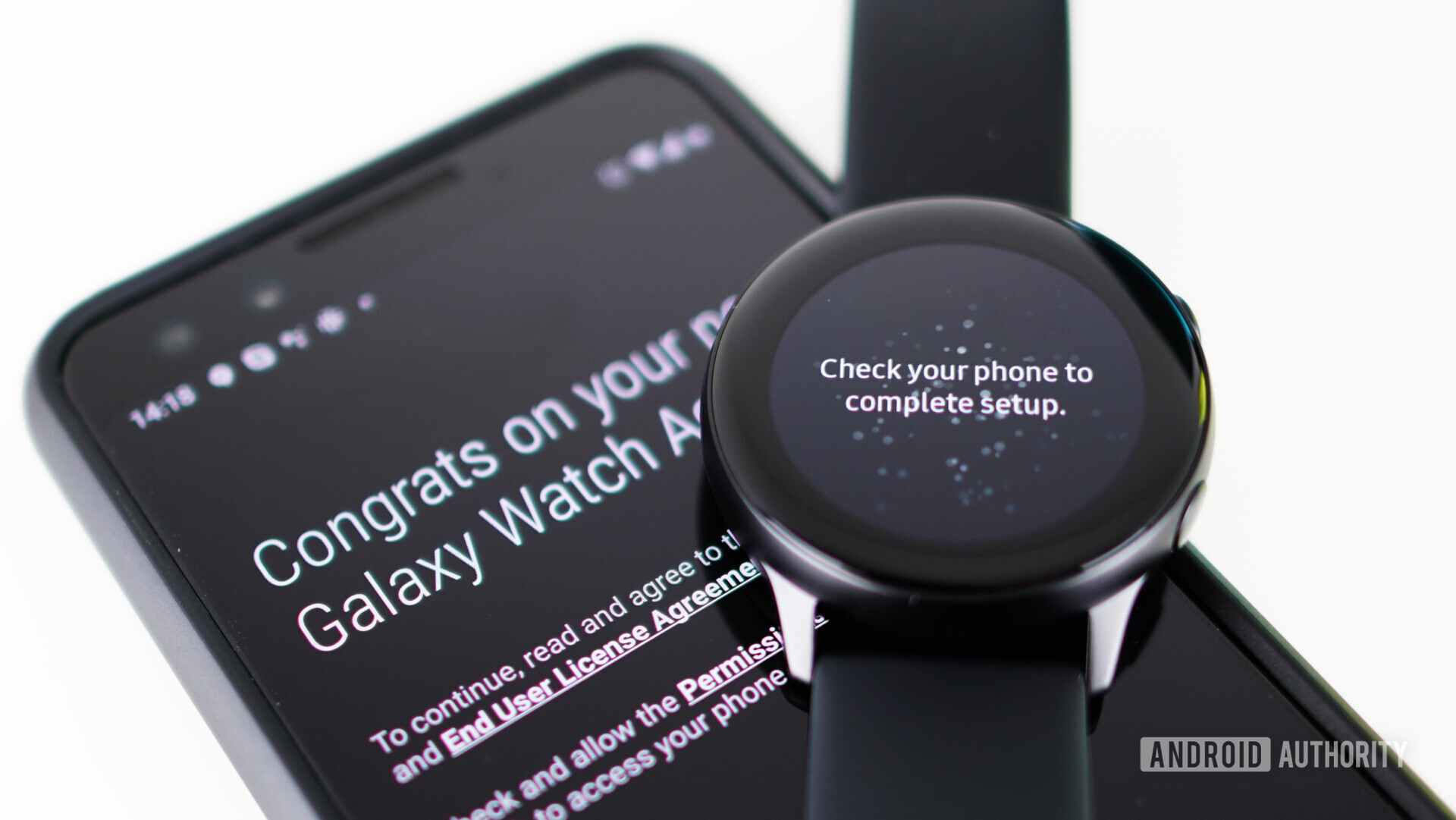
You’ll need to install a dizzying array of apps at startup: the Galaxy Wearable app, the Galaxy Watch Active Plugin, Samsung Accessory Service, and then Samsung Health and Samsung Pay if you don’t already have them.
The Wearable app lets you control everything on the watch with your phone and also lets you transfer content like music and images to it. The app can also be used to set up an SOS transmission to share your location with selected contacts in an emergency by quickly pressing the bottom button three times.
Samsung Galaxy Watch Active: Specs
| |
Samsung Galaxy Watch Active |
| Display |
1.1-inch full-color always-on display
360 x 360 resolution
Corning Gorilla Glass 3 |
| Memory |
768MB RAM
4GB storage |
| Connectivity |
Bluetooth 4.2
Wi-Fi b/g/n
NFC
A-GPS/Glonass |
| Sensors |
Accelerometer
Gyroscope
Barometer
Heart rate
Ambient light |
| Processor |
Dual-core Samsung Exynos 9110
1.15GHz |
| Battery |
230mAh
WPC-based wireless charging |
| Durability |
5ATM + IP68
MIL-STD-810G
|
| Compatibility |
Samsung Galaxy, Android 5.0 or above with more than 1.5GB RAM
iPhone: iPhone 5 and above, iOS 9.0 or above |
| Software |
Tizen-based Wearable OS 4.0 |
| Dimensions and weight |
Case: 40mm
39.5 x 39.5 x 10.5mm
25g
Strap: 20mm |
| Colors |
silver, black, rose gold, sea green |
Samsung Galaxy Watch Active: Performance and battery life

- Samsung Exynos 9100
- 4GB internal storage
- 0.75GB of RAM
- 230mAh battery
The Watch Active performs well and I had no noticeable issues with lag, stuttering or crashes, barring the Plugin crashing when I tried to sync music (that was likely due to the Android Q developer preview, not the watch). Speaking of music, if you want to load your own tunes onto the Watch Active’s internal storage, just be aware about half of it will already be used out of the box.
The Galaxy Watch’s battery is admittedly small, but is only a little smaller than the small Galaxy Watch. Samsung promises 45 hours of battery life which is probably true if you disable pretty much everything. If you’re regularly tracking activities (as I would assume you would), you’ll be able to get through a day. If you’re streaming music that’ll drop to less than a day, use GPS and it’s half a day – you get the idea.
I found a day’s usage was pretty standard with an average mix of notifications, music, activity tracking, and interactions with notifications. This is neither better nor worse than most other smartwatches, but for a watch designed specifically for an active lifestyle, better battery life would have been appreciated.
What’s perhaps worse is the extremely slow charging via the included wireless puck. Instead of using pogo pins, Samsung opted for wireless charging here. It’s painfully slow. The 230mAh battery takes almost two hours to charge, which is a horrendously long time for a watch you might just want to juice up quickly before you duck out for a run. You can wirelessly charge it on the go with the new S10 family, but it’ll take even longer to charge that way.
Samsung Galaxy Watch Active: Pricing and final thoughts

At $199, the Galaxy Watch Active is priced very competitively. As far as hardware performance goes it’s up there, barring the battery and charging issues just mentioned. Where the Galaxy Watch Active falls down though, putting it squarely in do-not-buy territory — is fitness tracking. Fortunately, this is something Samsung can absolutely fix, and will hopefully do so soon. I’ve had a great experience with other Samsung wearables in the past, so I know Samsung can make amends.
Despite the 'Active' name, you shouldn't buy the Galaxy Watch Active if you need accurate fitness or health tracking.
If the actual data recorded by the Watch Active is not the reason you’re buying it, then go ahead — it’s likely a sound investment (especially seeing there are so many open box discounts already due to the number of returns retailers are seeing).
If you want a wearable for notifications, music, something to prompt you to move or relax, and tell you the time, then yeah, the Galaxy Watch Active is great. But add blood pressure monitoring, sleep tracking, heart-rate monitoring, step or floor count to that list of needs and the Watch Active is simply not a good buy right now.
Looking for an alternative? The Fitbit Ionic has a similar feature set, price point, and isn’t bad at fitness tracking. The Garmin Vivoactive 3 Music is also a great GPS running smartwatch.
Affiliate disclosure: We may receive compensation in connection with your purchase of products via links on this page. The compensation received will never influence the content, topics or posts made in this blog. See our disclosure policy for more details.
from Android Authority https://ift.tt/2TMKxn3